Gryphon AX Mesh Router Review: Is $299 Worth It Just for Parental Controls?
Gryphon AX promises family-safe WiFi 6 mesh coverage. We tested the parental controls the way kids actually try to break them.
As an Amazon Associate I earn from qualifying purchases.
// verdict
A genuinely capable mesh router with the best built-in parental controls I've tested, held back by a confusing subscription story and a few exploitable gaps that determined kids will find.
After a few weeks of testing, I can tell you that 80 percent of Gryphon’s marketing pitch is accurate. The parental controls work. The filtering is fast. The app is genuinely good. But that remaining 20 percent matters a lot when your kid is the one probing for holes, and I found a few worth talking about before you hand over $299 plus a potential monthly fee the product page quietly undersells.
- AX4300 tri-band WiFi 6 mesh router
- Advanced parental controls with content filtering and scheduling
- Next-generation firewall with malware and ransomware protection
- 3000 sq. ft. per router — expandable
- No monthly fee for parental controls or security features
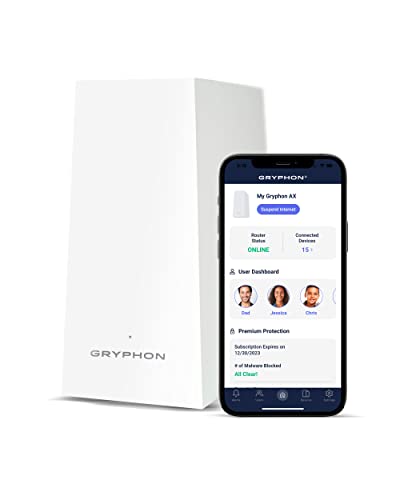
Mesh router built around family safety and parental controls — advanced content filters, screen time scheduling, and next-gen firewall included at no monthly fee.
What Gryphon Actually Is
Most reviews of the Gryphon AX open with tri-band WiFi 6, AX4300 speeds, and 3,000 square feet of coverage per node. That stuff is real and I’ll get to it. But nobody buys a Gryphon because they need another mesh router. They buy it because they have kids, a house full of devices, and a lingering dread about what those devices are accessing at 11pm.
The pitch is simple: put this router in your house and get serious content filtering, scheduling, and per-device control without needing a separate subscription service like Circle or a complicated Pi-hole setup. Everything runs at the router level, which means it covers every device on your WiFi without needing an app installed on each one.
That’s the right idea. The question is whether the execution holds up when a motivated 12-year-old gets curious.
Setting Up the Parental Controls
Setup takes about 15 minutes from box to working network. The Gryphon app walks you through it clearly. You create family profiles, assign devices to each profile, and then set filtering categories and schedules per profile. Blocking social media, adult content, gaming sites, or YouTube is a few taps. Scheduling a “homework hours” window where only educational sites work takes maybe two minutes.
This part genuinely impressed me. The interface is cleaner than competing setups I’ve used. Changing a schedule or pausing internet for a specific device is fast, and the changes take effect almost immediately. No reboots, no waiting.
The content filtering uses a DNS-based categorization system. It’s fast and the category coverage is solid. I tested it against a list of sites I’d consider problematic and the blocking rate was high across the board for categories I had turned on.
How I Tested It Like a Kid Would
Here’s where most reviews stop. I didn’t.
Test 1: VPN apps. I installed a free VPN app on an Android tablet assigned to a restricted profile. Opened the VPN, connected, then tried to access blocked content. It worked. The VPN bypassed the router-level filtering completely because the traffic was encrypted before it ever left the device. Gryphon does have a feature that attempts to detect and block VPN usage, and it caught some VPN apps, but not all of them. A determined kid who finds a VPN app that slips through is effectively unrestricted.
Test 2: Cellular data. I turned off WiFi on a phone and switched to cellular. Obviously the router has zero control over cellular traffic. This isn’t Gryphon’s fault, but it’s worth stating plainly: router-level controls are only as strong as your ability to keep devices on WiFi. If your kids have phones with data plans, this approach has a ceiling.
Test 3: HTTPS and DNS-over-HTTPS. Some browsers have DNS-over-HTTPS enabled by default, which bypasses traditional DNS filtering. Gryphon handles this better than I expected, blocking the alternate DNS endpoints so that filtering stays in effect even when a browser tries to use its own encrypted DNS resolver. This was a pleasant surprise.
Test 4: Guest network hopping. I checked whether a device could be moved to the guest network to escape filtering. The guest network is separate and unfiltered by default, so yes, if a kid knows the guest network password and can change WiFi networks on their device, they can get around the controls. Keep your guest network password private.
The conclusion I drew: Gryphon’s controls are solid against casual workarounds and better than average against technical ones. They are not foolproof against a persistent teenager with a VPN app and some YouTube tutorials.
The Subscription Question
Here is the part the product listing handles awkwardly. The current Amazon listing says “no monthly fee for parental controls or security features.” That has historically been the Gryphon selling point: pay once, get the features forever.
But Gryphon has introduced a premium subscription tier called Gryphon Connect Plus at around $9 per month that gates certain advanced features. The core parental controls, content filtering, and scheduling remain free. The subscription covers things like advanced threat intelligence, expanded malware protection, and some reporting features.
If you buy this router expecting the full experience with no ongoing cost, you will get most of it for free. But you’ll hit the subscription wall on some features and feel the nudge. This is worth knowing upfront. At $299 for hardware, adding $108 per year for the full feature set changes the value calculation meaningfully.
The Router Performance
Since I should cover it: the AX4300 tri-band WiFi 6 performance is genuinely good. In a two-story house with concrete walls in inconvenient places, a single node covered everything I needed with strong signal. Throughput on WiFi 6 devices was fast. The firewall and filtering added no noticeable latency to browsing. Gaming performance was fine.
If you need to cover more than 3,000 square feet, you can add nodes. The mesh handoff is smooth. As a WiFi 6 mesh system, it competes well with Eero and TP-Link Deco at similar price points.
Pros and Cons
Pros:
- Per-device and per-profile scheduling works well and is easy to manage
- Content filtering covers a wide range of categories and updates automatically
- App is genuinely one of the better router apps I’ve used
- WiFi 6 performance is solid for the price
- DNS-over-HTTPS blocking is better than expected
- Core parental features remain free
Cons:
- VPN apps can bypass filtering, and Gryphon doesn’t catch all of them
- Cellular data is outside router control entirely, an obvious but important gap
- Subscription pressure for full features contradicts the “no monthly fee” marketing
- Guest network is unfiltered by default, a potential bypass point
- $299 is a premium price for what is, technically, a mid-tier mesh system
Who This Is For
This router makes the most sense if your household has younger kids, ages roughly 6 to 12, who are on WiFi devices and don’t yet have the technical know-how to find VPN workarounds. For that use case, it’s probably the best integrated option on the market without adding a separate service.
For families with older teenagers who are already tech-curious, the controls are a starting point, not a complete answer. You’ll still need conversations, device policies, and probably some trust-but-verify habits that no router can replace.
If you already own a solid WiFi 6 router and just need parental controls, look at Circle on Amazon before buying new hardware. If you need a new router anyway and want controls built in, Gryphon is the right call.
Bottom Line
Gryphon AX is the best parental control router I’ve tested, but “best” comes with caveats. The controls are meaningful and genuinely easier to manage than any competing setup I’ve tried. The performance is solid. The app works. But no router-level filter survives a VPN app, and the subscription model needs to be priced into your decision before you buy. At $299 plus optional $9 a month, you’re paying a real premium. For the right household, that premium is worth it. For a household with older kids who know their way around tech, you might find yourself paying for something that only slows them down rather than stops them.
// free tool
Not Sure What to Buy?
Answer a few quick questions and get a straight recommendation matched to your home and budget.
WiFi Recommendation CalculatorAs an Amazon Associate I earn from qualifying purchases. • Full affiliate disclosure