Fiber Internet + Wrong Router = Wasted Speed: What You Need Instead
Got gigabit fiber but still getting slow speeds? Your router is probably the bottleneck. Here's exactly what you need to fix it.
There’s a thread on r/HomeNetworking that comes up constantly. Someone posts about upgrading to gigabit or multi-gig fiber, then admits they’re still only hitting 300-400 Mbps on their devices. The replies are predictable: “What router are you using?” The answer is almost always a device that was mid-range three or four years ago, running on outdated radio hardware and a processor that was never designed to route at modern speeds.
Paying for fast fiber and leaving speed on the table because of the wrong router is one of the most common and fixable problems in home networking. Here’s what’s actually happening and what to do about it.
Before You Buy: Confirm the Router Is Actually the Bottleneck
On a fiber plan, there is no cable modem to blame. The ONT your ISP installed converts the optical signal to an ethernet handoff. You cannot buy a better ONT. If your connection feels slow, the breakdown is almost always between that ethernet port and your devices.
The fastest way to confirm the router is the weak link is two speed tests run back to back:
Wired test first. Connect a laptop directly to your router’s LAN port with an ethernet cable. Close background apps. Run a test at speedtest.net to a server geographically close to you. This removes WiFi as a variable and tells you exactly what the WAN port is delivering.
Wireless test second. Run the same test from the same device over WiFi, ideally close to the router. Compare to the wired result.
If wired speeds match your plan and WiFi speeds fall significantly short, the router hardware is not the bottleneck. You have a placement or coverage issue. Moving the router to a more central location, checking interference from neighboring networks, or adding a mesh satellite will cost less than replacing a router that is performing correctly.
If both wired and wireless speeds are slow, you are looking at one of: a WAN port that can’t handle your plan speed, a CPU throttling under load, or an ISP provisioning issue. That is where the hardware upgrades below apply.
One note for fiber customers: some ISPs provide a gateway device that handles both the ONT function and routing in one unit. AT&T’s BGW320 and some Google Fiber installs work this way. If you’re on one of those, run your wired test directly from the ISP gateway’s LAN port. If that speed is fine and your own router’s wired result is slow, the ISP box is doing its job and your router is the problem.
Why Your Old Router Can’t Handle Modern Fiber Speeds
The bottleneck usually isn’t WiFi signal strength. It’s processing power and port spec.
Most routers sold between 2017 and 2021 shipped with a single Gigabit Ethernet WAN port. That’s a hard ceiling of roughly 940 Mbps under ideal conditions. If your fiber plan delivers 1.2 Gbps or 2 Gbps, that router physically cannot pass the full speed, no matter how strong the signal is or how close your device sits to it.
Then there’s the CPU problem. Routing packets at high throughput, running NAT, managing QoS, and handling simultaneous connections from dozens of devices is actual computational work. Budget and midrange routers from a few years ago used single-core or dual-core processors running at 800 MHz to 1.2 GHz. Those chips start dropping performance when you push them hard. A router with a 1 GHz dual-core CPU handling 40 connected devices, active VPN passthrough, and a 2 Gbps fiber connection will throttle throughput before it even reaches the radio layer.
RAM matters too. 128 MB or 256 MB of RAM was standard a few years ago. Modern households with smart TVs, phones, laptops, tablets, smart home devices, and gaming consoles can easily have 30 to 60+ connected devices. When router RAM fills up, performance drops.
The short version: if your router has a Gigabit WAN port, a single or dual-core processor, and less than 512 MB RAM, it is the weak link in your fiber setup.
Gigabit vs. Multi-Gig Router Specs Explained
Gigabit Ethernet runs at a maximum of 1 Gbps (gigabit per second). That spec covers both the WAN port connecting to your fiber modem or ONT and the LAN ports connecting wired devices. For plans at 500 Mbps or under, a Gigabit router is perfectly fine. For anything above 1 Gbps, you need a multi-gig router.
Multi-gig ports come in a few flavors: 2.5 GbE, 5 GbE, and 10 GbE. The number tells you the maximum throughput that port can handle. A router with a 2.5 GbE WAN port can theoretically handle fiber plans up to about 2.3 Gbps. A 10 GbE WAN port handles plans up to 10 Gbps.
The catch is that your fiber ONT (the box your ISP installs) also needs to support multi-gig output. Most current fiber installs from major providers now ship with 2.5 GbE or 10 GbE ONT ports, but older installs may still be Gigabit-limited at the ONT itself. Check with your ISP before upgrading the router if you’re on a plan above 1 Gbps.
For most households on plans between 1 Gbps and 2 Gbps, a router with a 2.5 GbE WAN port is sufficient. For multi-gig plans at 5 Gbps or 10 Gbps, you want a 10 GbE port.
WiFi 6 and WiFi 7 for Fiber: What’s Real, What’s Hype
WiFi 6 (802.11ax) was a meaningful upgrade over WiFi 5, primarily because of OFDMA and better MU-MIMO implementation. OFDMA lets a router divide a channel into smaller sub-channels and serve multiple devices simultaneously rather than sequentially. In real-world testing published by sources like Wirecutter and SmallNetBuilder, WiFi 6 routers consistently showed higher aggregate throughput in environments with many simultaneous connections compared to WiFi 5 hardware.
WiFi 7 (802.11be) adds Multi-Link Operation (MLO), which is the most significant capability jump in years. MLO allows a device to transmit and receive across multiple frequency bands simultaneously rather than picking one band and sticking with it. Published benchmarks from ASUS and independent sources show MLO reducing latency and increasing throughput, particularly in congested environments. For a home where multiple people are streaming 4K, gaming, and on video calls at the same time, MLO delivers real, measurable benefits.
What’s hype: peak speed ratings on the box. A “BE6800” or “AXE6000” number is the theoretical combined maximum across all bands simultaneously. No single device achieves that. The number you care about is real-world throughput per band, which shows up in independent lab tests, not marketing specs.
The honest take: WiFi 6 is proven, mature, and well-supported. WiFi 7 is real and performs better, but the gains matter most in multi-device, high-density environments. If you’re on a multi-gig fiber plan with a lot of devices and heavy simultaneous use, WiFi 7 is worth the upgrade now. If you’re on gigabit fiber with moderate use, a well-specced WiFi 6 router will serve you fine.
3 Routers That Actually Push Fiber Speeds
ASUS RT-BE86U: Best for Power Users and Multi-Gig Plans
The RT-BE86U ships with a 10 GbE WAN/LAN port and runs a 2.6 GHz quad-core 64-bit processor with 1 GB of RAM. That CPU and RAM combination means it has the headroom to handle high-throughput fiber plans, NAT at full speed, and a large number of simultaneous connections without throttling. The 10 GbE port means it’s not bottlenecked even on aggressive multi-gig plans.
WiFi 7 with MLO across 2.4 GHz and 5 GHz bands is included at $227. That price point is genuinely unusual for this spec level. Most WiFi 7 routers with 10 GbE ports sit above $350 at launch. AiProtection Pro, powered by Trend Micro, provides network-level security at no subscription cost. Coverage is rated at 2,750 square feet, and it supports ASUS AiMesh for expansion. Buy this once and it will handle whatever your fiber provider throws at it through the rest of the decade.
- WiFi 7 with Multi-Link Operation (MLO) on 2.4 + 5 GHz
- 10G Ethernet WAN/LAN port
- up to 20G combined wired
- 2.6 GHz quad-core 64-bit CPU
- 1 GB RAM
- Covers up to 2
- 750 sqft; expandable via ASUS AiMesh
- AiProtection Pro powered by Trend Micro
- subscription-free
The only WiFi 7 router at a price that makes sense for most buyers. At $227 it's priced like a mid-range WiFi 6 device but ships with a 10G port and full MLO support. Buy it once, use it through 2030.

eero Pro 7: Best Premium Mesh with Alexa Integration
The three-node eero Pro 7 kit handles fiber plans up to 5 Gbps using two 5 GbE ports per node, covers 6,000 square feet, and supports 600+ devices across the mesh. WiFi 7 tri-band with MLO is included, and Amazon’s TrueMesh, TrueRoam, and TrueChannel software handles band steering and roaming automatically as you move through a large home.
This is the right choice when coverage across a large or complex floorplan matters as much as raw throughput. Multi-story homes, homes with detached garages or outbuildings, and layouts where a single router leaves dead zones will benefit from the mesh approach. The Alexa integration is genuinely useful if your household is already deep in the Amazon ecosystem, since you can manage network settings and pause devices by voice. At $699.99 for the three-pack, you’re paying a premium, but the 3-year warranty and FCC conditional approval through October 2027 back the investment.
One note: eero Pro 7 is still under FCC conditional approval for some WiFi 7 features. Check current status at time of purchase, as approvals are subject to change.
- WiFi 7 tri-band with Multi-Link Operation (MLO)
- Supports internet plans up to 5 Gbps with two 5 GbE ports
- Three-node kit: 600+ devices
- 6000 sq. ft.
- TrueMesh + TrueRoam + TrueChannel software
- FCC conditional approval through October 2027
- 3-year warranty
WiFi 7 tri-band mesh system with FCC conditional approval — the premium choice for Alexa households needing whole-home coverage.

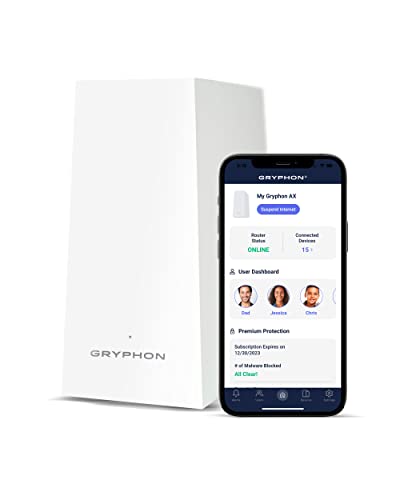
Gryphon AX: Best Router If Parental Controls Are Your Top Priority
The Gryphon AX is the right router for households where network security and kid-safe filtering matter more than bleeding-edge throughput. It runs AX4300 tri-band WiFi 6, covers 3,000 square feet per unit with mesh expansion support, and includes a next-generation firewall with malware and ransomware protection built in.
The differentiator is the parental control suite. Content filtering, screen time scheduling, and device-level usage controls are included with no monthly subscription. Most competing routers charge $5 to $10 per month for equivalent features through services like Circle or Norton Family. For a household managing screen time across multiple kids and devices, that subscription savings adds up quickly, and the controls themselves are granular enough to actually be useful rather than just broadly blocking categories.
At $299, the Gryphon AX costs more than a comparable WiFi 6 router without the security stack. The premium is entirely for the parental control and firewall features. If those don’t matter to you, look elsewhere. If they do, this is the router that won’t cost you extra every month to use them.
- AX4300 tri-band WiFi 6 mesh router
- Advanced parental controls with content filtering and scheduling
- Next-generation firewall with malware and ransomware protection
- 3000 sq. ft. per router — expandable
- No monthly fee for parental controls or security features
Mesh router built around family safety and parental controls — advanced content filters, screen time scheduling, and next-gen firewall included at no monthly fee.
Testing Your Actual Throughput
Upgrading your router is step one. Confirming that it’s actually delivering the speeds you’re paying for is step two, and it’s one most people skip.
Manufacturer speed estimates and ISP marketing speeds are both theoretical maximums. What matters is what your devices actually receive under real conditions: walls, interference, distance, and device radio capability all factor in.
The right way to test this is a combination of a wired speed test directly from a device connected to the router’s LAN port (which tells you your WAN throughput ceiling) and a WiFi throughput test from specific locations in your home. The wired test removes WiFi as a variable. If your wired result matches your plan speed, your router is doing its job. If your WiFi speeds fall significantly below that, the gap points to placement, interference, or device limitations.
Use the WiFi Calculator at NerdDad to map expected signal strength and throughput based on your router’s specs, wall materials, and layout. It takes the guesswork out of placement decisions and tells you whether you need a second node before you buy one.
The hardware is only as useful as the setup behind it. Get the right router for your fiber speed, place it correctly, and verify it’s performing. That’s how you actually use what you’re paying for.
// free tool
Not Sure Which Router Fits Your Home?
Answer four quick questions about your square footage, device count, and usage. The WiFi Recommendation Calculator tells you exactly which system to buy.
Use the WiFi CalculatorAs an Amazon Associate I earn from qualifying purchases. • Full affiliate disclosure