Mesh WiFi for Apartments: Why Whole-Home Systems Are Overkill and What to Buy Instead
Apartment WiFi problems aren't about coverage. Here's what actually causes slow speeds in dense buildings and what gear to buy instead.
Most mesh WiFi buying guides are written for people with 3,000 square foot houses, finished basements, and detached garages. If you live in an apartment, you are reading the wrong advice. A 3-pack mesh system built to blanket 6,000 square feet does not become a bargain just because you put it in a one-bedroom. It becomes interference. This guide is specifically for renters and apartment dwellers, and it will point you toward what actually works in dense, congested buildings.
Why a 3-Pack Mesh System Is Usually Wrong for an Apartment
The math here is straightforward. A typical 3-node mesh system is designed to cover 4,500 to 6,000 square feet, which means each node is engineered to push signal across 1,500 to 2,000 square feet. Pack three of those into 800 square feet and the nodes spend more time talking to each other than to your devices. Backhaul traffic increases, the nodes compete for airtime, and you end up with more radios broadcasting in an already noisy environment.
There is also a cost problem. A 3-pack mesh system frequently runs $300 to $500. That money, spent on a single high-quality router in a small apartment, will deliver faster speeds to every device in the space with less configuration complexity and less RF noise added to your neighbors’ environments. More hardware is not always better hardware.
The exception is a sprawling loft layout with thick concrete walls, but that is a different conversation. For a standard studio, one-bedroom, or two-bedroom apartment, the extra nodes typically create problems instead of solving them.
The Real Problem in Apartments: Neighbor Interference, Not Coverage
Here is what most apartment WiFi guides miss entirely: your WiFi is slow because of your neighbors, not because your router is underpowered or positioned badly. In a dense building, a WiFi scanner will routinely detect 20 to 40 networks competing on the same 2.4 GHz and 5 GHz channels. The 2.4 GHz band has only three non-overlapping channels in the US (1, 6, and 11). If eight of your neighbors are all on channel 6, your router is politely waiting its turn to transmit, constantly.
The technical term for this is co-channel interference, and it is the same problem enterprise WiFi engineers deal with in open-plan offices. In a corporate environment, the solution is a full-blown wireless site survey and channel planning with per-AP power management. In an apartment, you have two practical levers: move traffic to a less congested band (6 GHz, if possible), and reduce the number of competing radios in your own setup.
This is why throwing more nodes at an apartment WiFi problem is counterproductive. More nodes mean more radios broadcasting on those same congested channels, making the interference problem worse for everyone in the building, including you.
The real solutions are: moving traffic to less congested spectrum, reducing the number of competing radios in your own setup, and using wired backhaul where possible. We will get to all of those below.
When One Good Router Beats a Mesh System in Under 1,200 Sq Ft
In a space under 1,200 square feet with a standard open floor plan, a single WiFi 6 or WiFi 6E router placed centrally will outperform a multi-node mesh setup in most scenarios. A modern WiFi 6 router with OFDMA and MU-MIMO handles dozens of simultaneous device connections efficiently without the overhead of inter-node backhaul communication.
The TP-Link Archer AXE75, for example, delivers 5,400 Mbps combined throughput as a single unit, with a dedicated 6 GHz band that most of your neighbors are not using yet. At around $150 to $180 depending on current pricing, it covers the typical 1BR apartment comfortably and keeps the RF environment cleaner than adding a second node would.
If your apartment is under 1,000 square feet and you have line-of-sight from your router to most rooms, skip the mesh entirely. Our WiFi dead zones guide covers the specific layout situations where a single router falls short and you actually need a second node.
2-Node Mesh as the Apartment Sweet Spot: What to Look For
For two-bedroom apartments, units with unusual layouts, or any space where a single router leaves a dead zone in the far bedroom or bathroom, a 2-node mesh is the right answer. Not three nodes, not a 4-pack. Two.
What to look for specifically:
Dedicated 6 GHz backhaul. If the two nodes communicate with each other on the same band your devices use, you lose half your bandwidth to backhaul overhead. A system that reserves the 6 GHz band exclusively for node-to-node communication keeps your 2.4 GHz and 5 GHz bands free for client devices.
Tri-band WiFi 6E. The 6 GHz band is where apartments gain a real advantage right now. The band is largely empty in most buildings because it requires newer hardware. Until your neighbors upgrade en masse, 6 GHz is uncongested spectrum you can use.
App-based channel management. You want a system that can automatically shift channels based on current congestion, not one that locks you into a channel you set up three years ago.
MoCA or Ethernet backhaul support. If your building has coax outlets in multiple rooms, a wired backhaul eliminates the inter-node wireless overhead entirely. The MoCA wired backhaul guide walks through this option specifically for renters who cannot run Ethernet.
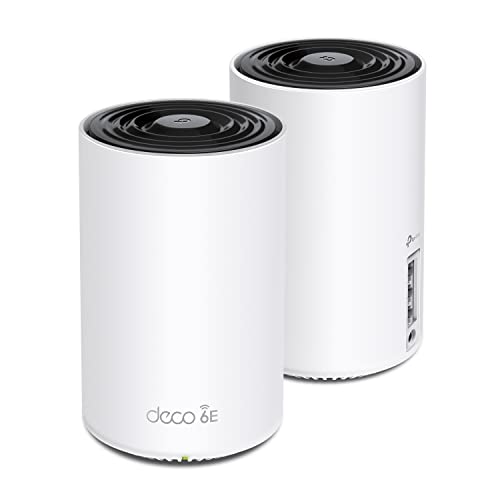
TP-Link Deco XE75 (2-Pack): 5,400 Mbps With a Dedicated 6 GHz Backhaul
At $179.99, the Deco XE75 2-pack is the most practical option for a two-bedroom apartment or any space up to roughly 4,500 square feet that needs two nodes. TP-Link specs this system at 5,400 Mbps combined throughput across three bands, with the 6 GHz band dedicated to backhaul by default. That default configuration matters because it means you are not manually configuring backhaul bands, which most people never do.
Support for up to 200 devices is well above what any apartment household will hit. Parental controls and basic security scanning are included in the app without a subscription. Setup is app-guided and takes approximately 10 minutes according to TP-Link’s published documentation and verified by multiple independent review outlets.
For a two-bedroom apartment where you need solid coverage in a back bedroom or home office nook, and you do not want to spend $300, this is the pick.
- WiFi 6E tri-band
- 6 GHz backhaul by default
- Up to 5
- 500 sqft with 2 nodes
- Supports up to 200 devices
- 5
- 400 Mbps combined throughput
- Parental controls and security scanning included
For a 2,500 to 4,500 sqft home, this 2-pack is the answer for the vast majority of families. Genuine WiFi 6E with a dedicated 6 GHz backhaul, 200-device support, and app-guided setup in about 10 minutes. The right price for the right performance.
Linksys Velop Pro 6E (2-Pack): 5.4 Gbps AXE5400 for Buildings With Heavy 5 GHz Congestion
The Linksys Velop Pro 6E 2-pack runs $299.99 and is positioned above the Deco XE75 for apartments where 5 GHz congestion is severe and you want maximum throughput on the 6 GHz band for both backhaul and capable client devices. The AXE5400 rating means 5.4 Gbps combined across all three bands, with WiFi 6E on the 6 GHz radio. Beamforming is included, which helps directionally focus signal in apartments where you are trying to push through a concrete wall to a bedroom on the far end of the unit.
The Velop Pro 6E also includes built-in internet security and parental controls. The Cognitive Mesh feature adjusts node connections dynamically based on real-time network conditions rather than static configuration. For a 2BR+ apartment or a unit with an unusual layout that includes a home office, the extra $120 over the Deco XE75 buys you more radio power and better band management in a genuinely congested RF environment.
- Beamforming
- Guest Mode
- Internet Security
- LED Indicator
- Parental Control
- Tri-Band
- WiFI 6E
- 6GHZ
Linksys Velop Pro 6E WiFi Mesh System | Two Cognitive Mesh Tri-Band routers with 5.4 Gbps (AXE5400) Speed

For a broader look at 2-node and full-home mesh options across different budgets, [the best mesh WiFi systems under $300 guide](/articles/best-mesh-wifi-systems-under-300-2026) covers the full competitive landscape.
WiFi 6 vs WiFi 6E in Dense Buildings: The 6 GHz Advantage
WiFi 6 (802.11ax) operates on 2.4 GHz and 5 GHz. WiFi 6E adds the 6 GHz band, which opened up 1,200 MHz of new spectrum in the US when the FCC authorized it in 2020. That is nearly twice the total spectrum previously available across both legacy bands combined.
In a dense apartment building, 6 GHz is currently less contested for one simple reason: it requires a WiFi 6E capable router and a WiFi 6E capable client device. Older routers, which most of your neighbors are still running, cannot use it. That gap will close over time, but in 2026 you still have a real advantage by moving your heaviest traffic to 6 GHz before the band fills up.
The tradeoff is range. 6 GHz does not penetrate walls as well as 2.4 GHz. In an apartment, that is rarely a problem because the distances are short. A node 30 feet away through one interior wall will still deliver a strong 6 GHz signal. The reduced range actually becomes an advantage in your favor because your 6 GHz signal does not bleed as far into neighboring units, reducing the cross-apartment interference you create for others and limiting how much of their 6 GHz traffic bleeds back to you.
Channel Congestion: How to Check Your Environment Before Buying
This is the step most apartment renters skip, and it costs nothing.
Before purchasing any router or mesh system, spend five minutes with a free WiFi analyzer app. On Android, WiFi Analyzer (open source) shows every visible network, its channel, and its signal strength. On macOS, the built-in Wireless Diagnostics app under the Window menu shows the same data. On Windows, the netsh wlan show all command in Command Prompt lists every visible network.
What you are looking for: how many networks are visible on each channel in the 2.4 GHz and 5 GHz bands, and whether any networks are visible at all on 6 GHz. If you see 15 networks on 5 GHz channels 36 to 48 and zero on 6 GHz, that data tells you exactly where to focus your new router’s primary band configuration.
The WiFi calculator tool can also help you estimate how many nodes you actually need based on your square footage, wall construction type, and device count before you spend anything.
Recommended Setups by Apartment Size
Studio or 1BR under 800 sq ft: A single WiFi 6E router placed near the center of the unit. No mesh needed. Prioritize a unit with a strong 6 GHz radio and OFDMA support. Budget around $120 to $180.
1BR or 2BR between 800 and 1,400 sq ft: A single high-powered WiFi 6E router placed toward the center, elevated off the floor. If a back bedroom has consistently poor signal, add one secondary node. The Deco XE75 2-pack at $179.99 handles this scenario well without overbuilding.
2BR+ or layouts with concrete walls, long hallways, or split-level floors above 1,400 sq ft: A 2-node WiFi 6E mesh with dedicated 6 GHz backhaul. The Deco XE75 2-pack covers the budget-conscious end and the Linksys Velop Pro 6E 2-pack covers situations where congestion is severe and throughput demands are high. Neither scenario calls for a 3-pack.
The key principle across all apartment sizes: match the system to the actual space and actual problem. Channel congestion is not solved by more nodes. Coverage gaps in a compact apartment are usually solved by repositioning, not buying additional hardware. Start with a WiFi scan, measure your space honestly, and then buy accordingly.
// free tool
Not Sure Which Router Fits Your Home?
Answer four quick questions about your square footage, device count, and usage. The WiFi Recommendation Calculator tells you exactly which system to buy.
Use the WiFi CalculatorAs an Amazon Associate I earn from qualifying purchases. • Full affiliate disclosure